Start here
Receive a delivery
The main flow: what to press at the bay while the driver is still there.
This is the part you do with a pallet in front of you and a driver waiting. You can do all of it on your phone, standing up, in about four minutes. Here is exactly what you will tap.
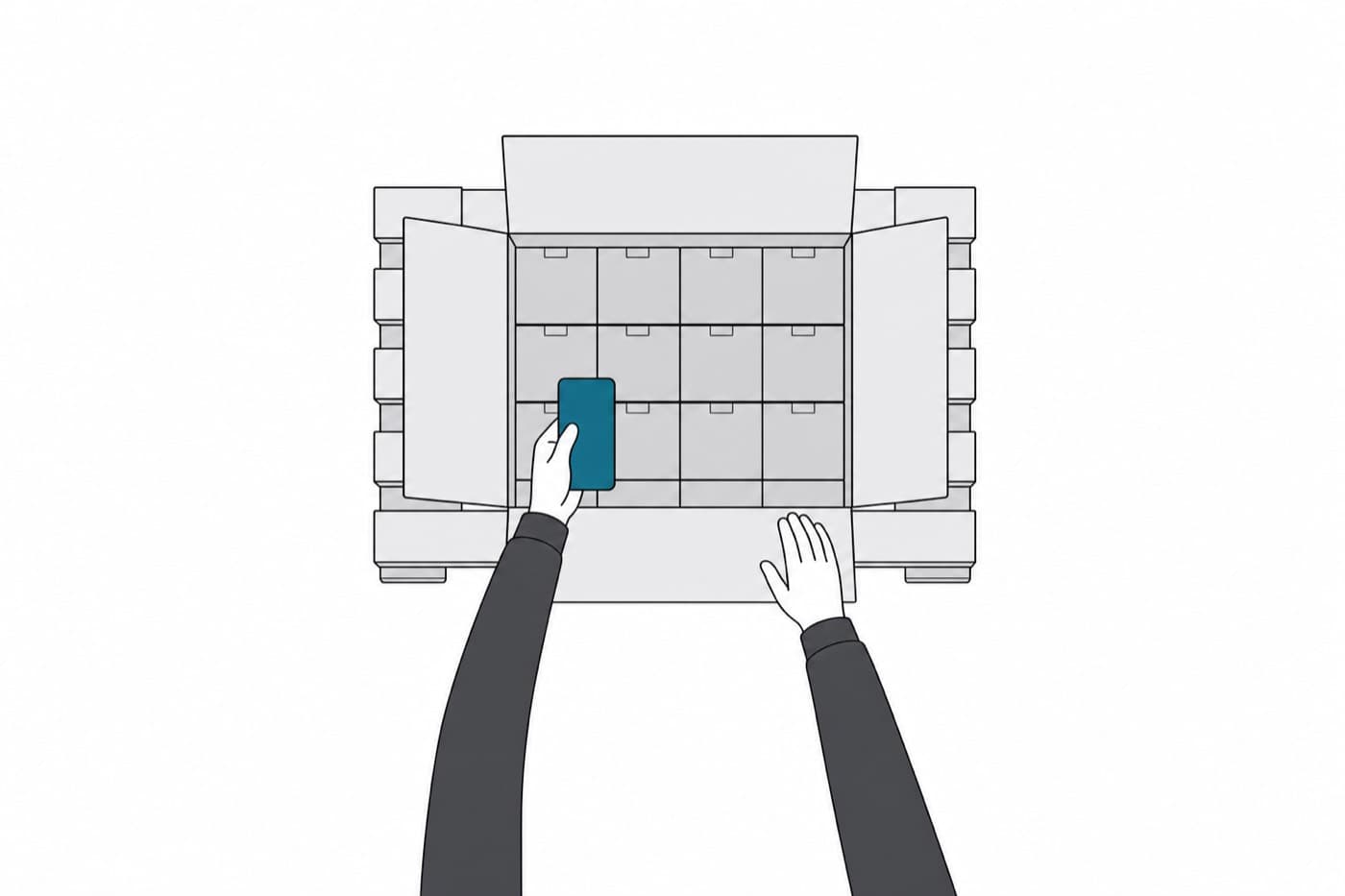
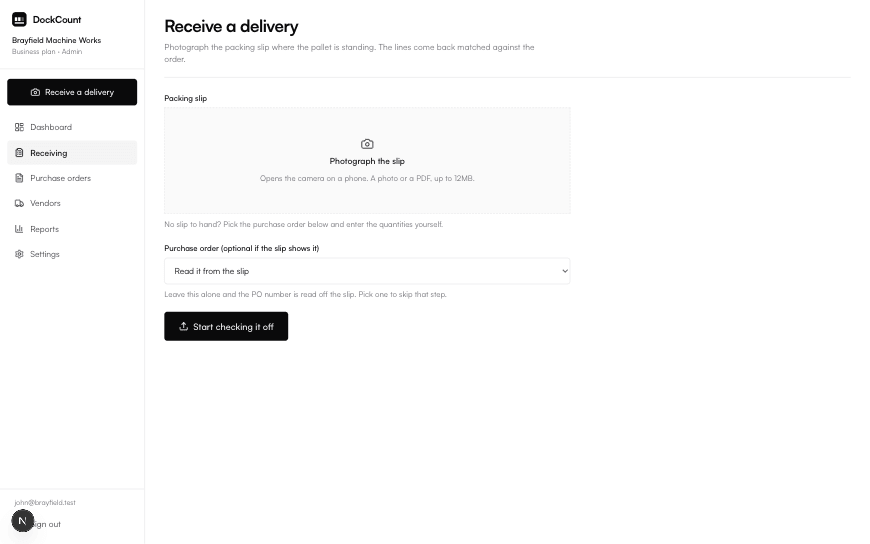
- 1Open Receive a delivery. Either photograph the packing slip, or pick the purchase order and type the quantities.
- 2If you photographed it, the lines come back matched against the order in a few seconds. If you picked the order, its lines are listed ready for you.
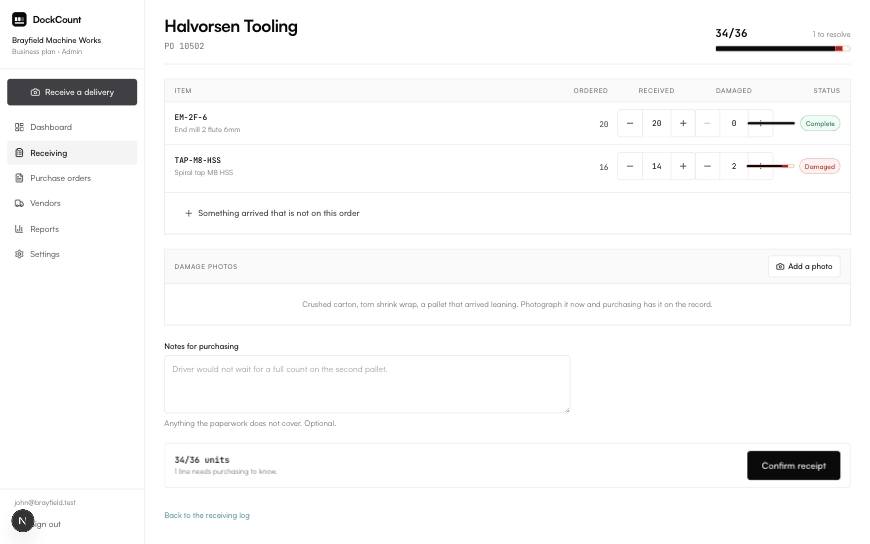
- 3Go down the list and set what actually arrived. Every quantity is editable, because the pallet is what counts and the paperwork is only a claim.
- 4Photograph anything damaged, on the line it belongs to.
- 5Confirm. The record is saved and, on the right plan, purchasing is emailed.
You should see
A row for every item on the order, with what was ordered on the left and two counters: how many arrived, and how many of those are damaged. The label on the right changes on its own as you count, so you never have to decide what to call it.
Put another way
Checking a supermarket delivery against the order on your phone. You are not writing anything down, you are correcting a list somebody else already made.
You do not need the photo
Photographing the slip saves typing, and on the Business plan and above the software reads it for you. On any plan you can skip it: pick the purchase order and enter the quantities yourself. The record that comes out is exactly the same.
What counts as done
Nothing is final until you confirm. Up to that point it is a draft and you can change every number on it. After you confirm, the quantities are fixed as a record of what arrived.
Worth knowing
Sign for the pallet, not the paperwork. If the slip says fifty and you counted forty-five, put forty-five in. The whole point of the record is that it disagrees with the slip when the pallet does.
Did this page miss something?
If you came here with a question and left without the answer, that is a fault in the page rather than in the question. Tell us what you were trying to do and we will write it up, usually the same week.